

Shipping an AI chat to production with a safety net
How I added a docs assistant to my blog with Unleash feature flags, impact metrics, and safeguards
Earlier this year I built an AI assistant for the Handsontable docs website. We considered going with an off the shelf solution, but ultimately decided to build it in-house because it was considerably cheaper, and gave us more control.
It worked great at first, customers were getting a lot of use out of it, and load was reduced on the support team. Then we released a new version of the Handsontable library, and needed to do a full scan and upload of the new docs.
We hit a rate limit on a third-party API. It wasn’t a bug in the code. The limit was undocumented and was never an issue in testing. So I had to write a wrapper function with my own logic for throttling, and retry on failed requests.
Some errors like this are easy to miss in testing and only show up in production. But you can use feature flags to control how many people it affects, and to respond to the incident automatically. So when I decided to add the same AI assistant to my own blog, I set it up using Unleash Safeguards to hide the feature if it starts to error in production.
This post will cover:
- How feature flags separate deployment from release
- The architecture: two gates, one set of flags
- Setting up release and kill switch flags in Unleash
- Enforcing flags on the server and hiding the UI in the browser
- Reporting impact metrics from the backend
- Configuring a safeguard, then breaking things on purpose to watch it work
Deploying vs. releasing
Deployment happens when the code is merged, and release happens when the users can see the feature. Traditionally, those two happened at the same time, but feature flags split them into separate events. The code ships to production dark, and can be turned on or off using flags, outside of git, and with no new code changes.
Unleash gives you three pieces that build on each other:
| Unleash feature | What it does |
|---|---|
| Release templates | A reusable rollout plan: me first, then a slice of readers, then everyone |
| Impact metrics | The app reports counters and histograms (requests, errors, latency) straight to Unleash |
| Safeguards | A threshold on those metrics that disables the flag without a human in the loop |
The rest of this post walks through how each of those Unleash features are integrated with the new AI chat that I’m adding to my blog. I’ll show where Unleash’s SDK ties into the frontend and backend code, and how to set things up in the Unleash dashboard.
The architecture
The blog is a static Astro site on Cloudflare with no backend server. That means there’s nowhere safe to store the API key for the new Pinecone assistant, so I added a small Node server (Hono on Railway) that proxies requests to Pinecone.
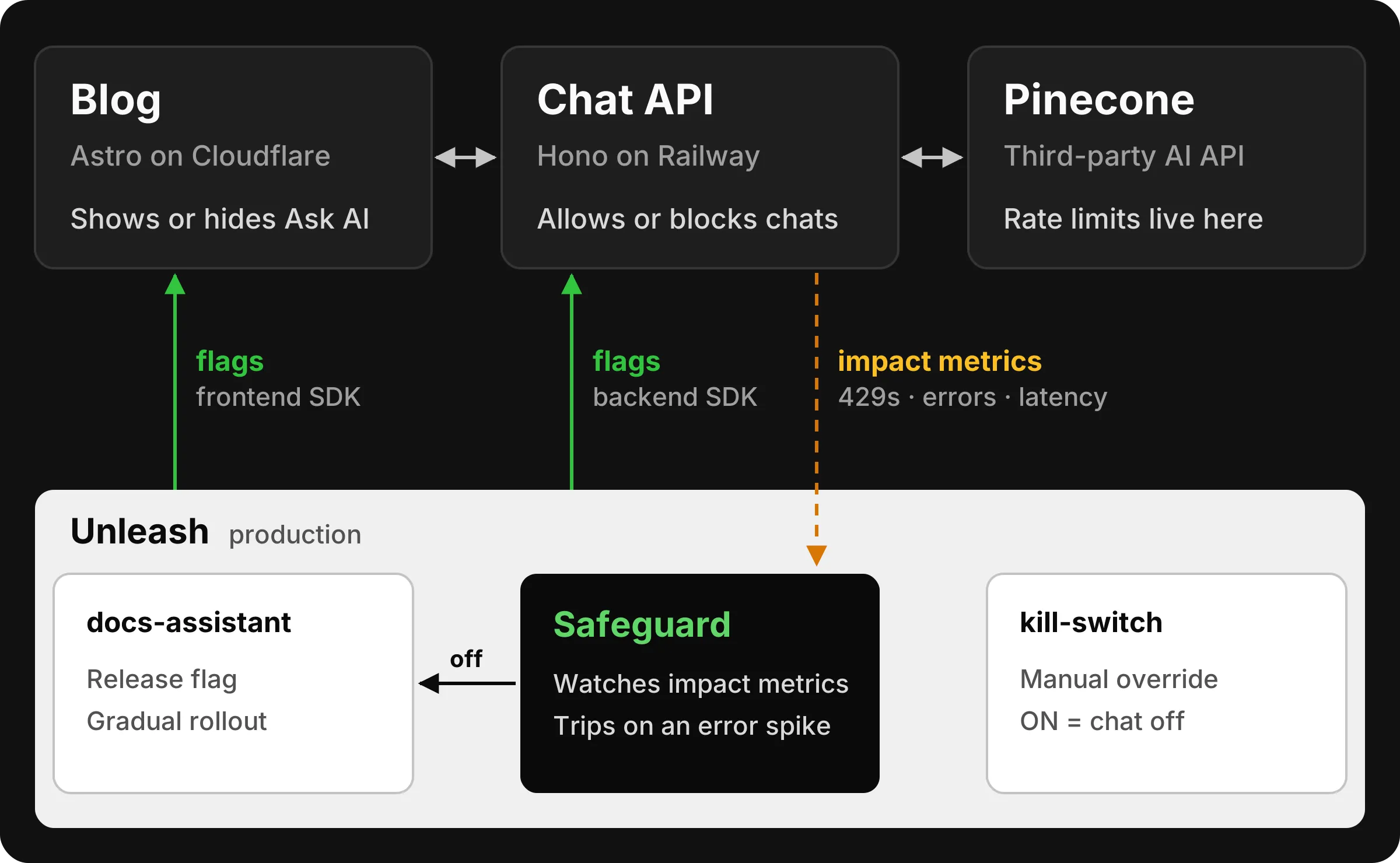
Unleash plugs into both sides:
- In the browser, the frontend SDK decides whether to show the Ask AI button. This is purely cosmetic.
- On the server, the backend SDK decides whether to answer the request. This is the real gate, because anyone can call the API directly whether the button is visible or not.
- Both sides use the same anonymous user ID, a random UUID stored in
localStorage. Unleash hashes it the same way in both SDKs, so a visitor who’s in the rollout sees the button and gets answers, instead of seeing a button that returns errors.
The flags
I set up two flags- one for the feature release and one for a killswitch:
| Flag | Type | Job | Lifetime |
|---|---|---|---|
docs-assistant | Release | Gradual rollout through a release template. The safeguard is attached here | Deleted after the feature is fully released |
docs-assistant-kill-switch | Kill switch | ON = chat off for everyone. A manual override I can flip anytime | Permanent |
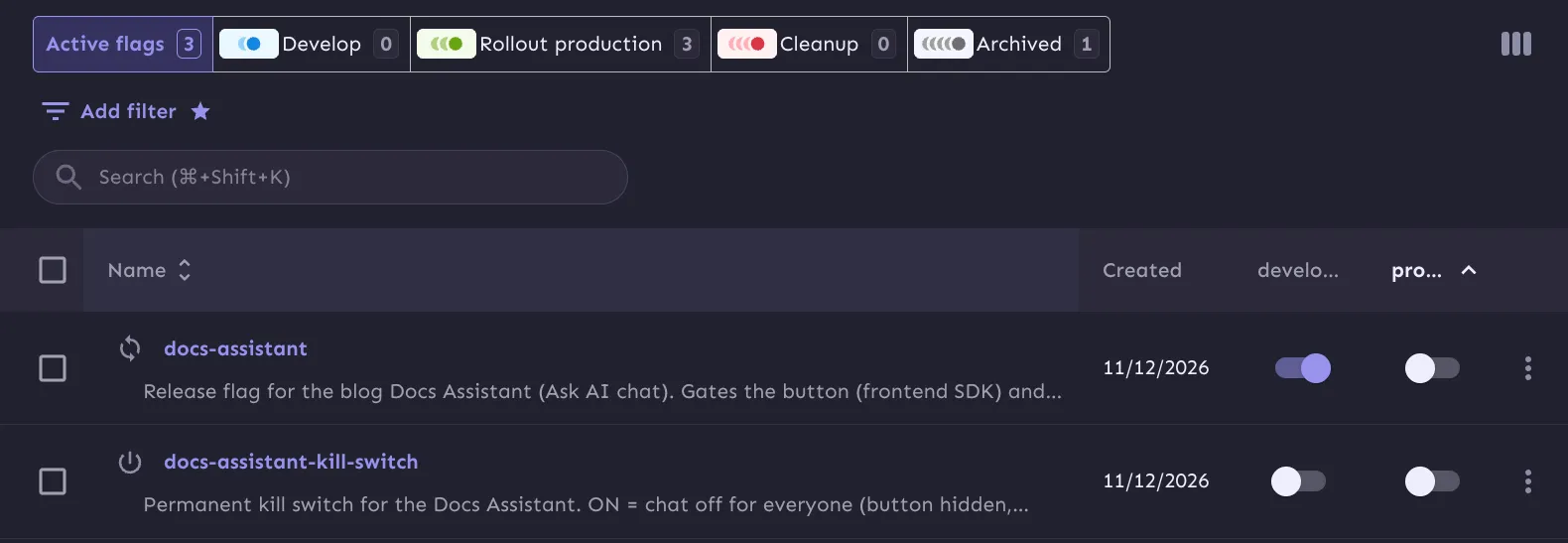
The chat only shows up when the release flag is on and the kill switch is off. If Unleash can’t find a flag, it treats it as off. So if something goes wrong with the flag setup, the release flag reads as off, and the chat stays hidden.
Rolling out with a release plan
Turning a flag on for everyone at once defeats the point. Instead, the production environment uses a release plan built from a release template I named AI feature rollout. It has six milestones: an internal-only stage, then a gradual rollout from 10% up to 100% of visitors.
The first milestone, M1 Internal, only matches one userId: demo-joseph, the ID I set in my own browser. So right now the chat is live in production, but I’m the only one who can see it. Moving to the next milestone is a click in Unleash, not a deploy.
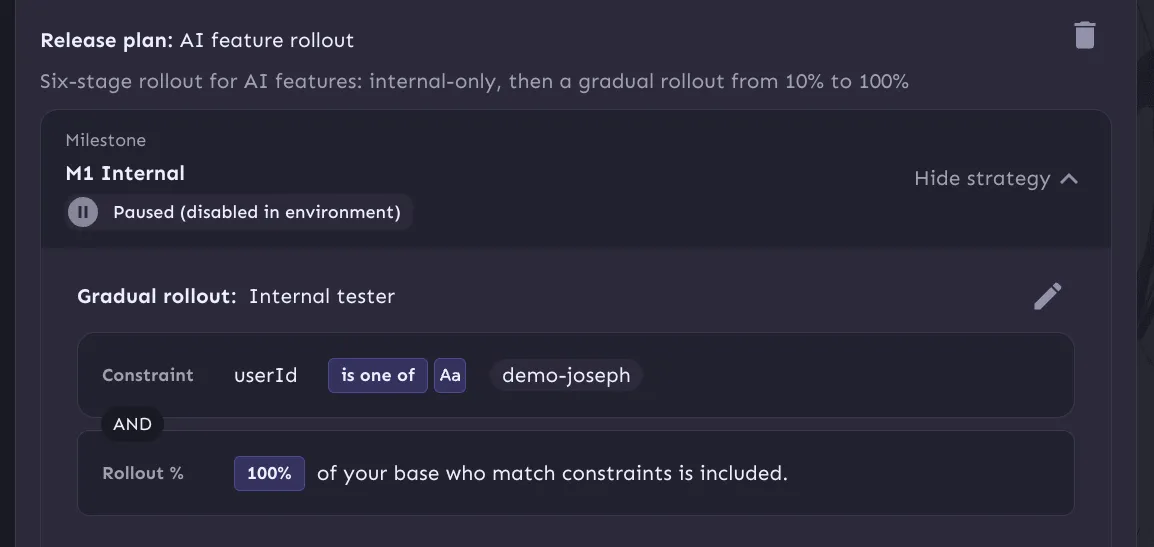
Because it’s a template, I can reuse the same rollout plan for the next AI feature without setting it up again. And when the safeguard disables the environment, the release plan pauses where it is, as shown above.
The server: the real gate
The backend uses the Node SDK, unleash-client. startUnleash waits for the first sync with Unleash before the server handles any requests, so a cold start doesn’t briefly deny everyone.
// server/index.js
import { startUnleash } from 'unleash-client';

const FLAG = 'docs-assistant';
const KILL_SWITCH = 'docs-assistant-kill-switch';

const unleash = await startUnleash({
  url: UNLEASH_URL,
  appName: 'greenflux-docs-assistant',
  customHeaders: { Authorization: UNLEASH_API_TOKEN },
  refreshInterval: 5000,
  metricsInterval: 10000,
});
Every chat request checks both flags for that visitor before anything is sent to Pinecone:
app.post('/api/chat', async (c) => {
  const body = await c.req.json().catch(() => null);
  const userId = typeof body?.userId === 'string' ? body.userId : undefined;

  if (unleash.isEnabled(KILL_SWITCH, { userId }) || !unleash.isEnabled(FLAG, { userId })) {
    return c.json({ error: 'Chat is not available.' }, 403);
  }
  // ...validate messages and proxy to Pinecone
});
The isEnabled check runs locally without a network call. Unleash caches the flags so your app can check them quickly without every event waiting for an HTTP response.
Reporting impact metrics
Impact Metrics are what drives the Safeguard feature. You define counters for different metrics, and then increment them in your code to track errors and other user events. Here I defined four: one that counts every chat request, one just for the 429 rate limit, one for all other errors, and a histogram for latency.
const metrics = unleash.impactMetrics;
metrics.defineCounter('docs_chat_requests', 'Chat requests sent to Pinecone');
metrics.defineCounter('docs_chat_upstream_429', 'Pinecone 429 responses');
metrics.defineCounter('docs_chat_upstream_errors', 'Pinecone non-429 failures');
metrics.defineHistogram('docs_chat_latency_ms', 'Pinecone response latency (ms)',
  [100, 250, 500, 1000, 2500, 5000, 10000]);
Then it’s one line wherever something worth counting happens:
metrics.incrementCounter('docs_chat_requests');
const started = Date.now();
const upstream = await fetch(pineconeUrl, { /* ... */ });
metrics.observeHistogram('docs_chat_latency_ms', Date.now() - started);

if (upstream.status === 429) {
  metrics.incrementCounter('docs_chat_upstream_429');
  return c.json({ error: 'The assistant is busy. Try again in a minute.' }, 429);
}| Metric | Type | Recorded when |
|---|---|---|
docs_chat_requests | Counter | Every chat request, before calling Pinecone |
docs_chat_upstream_429 | Counter | Pinecone returns a rate limit |
docs_chat_upstream_errors | Counter | Network failure or a bad response |
docs_chat_latency_ms | Histogram | Pinecone responds |
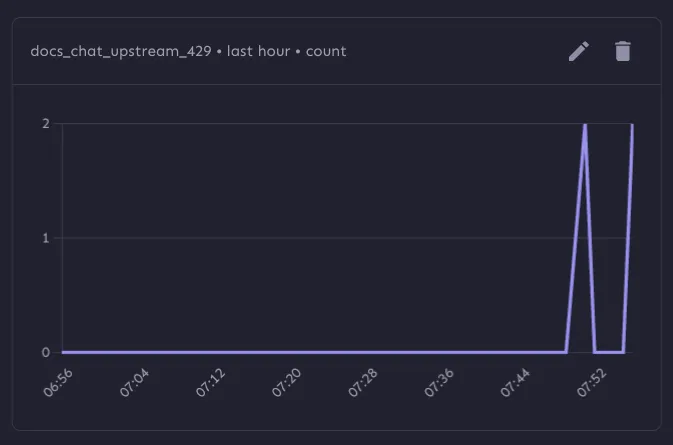
With Unleash, there’s no separate metrics pipeline or Prometheus to set up. The SDK batches the events and sends them on metricsInterval. At Handsontable, the rate limit hit our docs sync job rather than the chat itself, but it’s the same kind of problem: a third-party limit you only find in production. The 429 counter makes that kind of failure visible to Unleash, so it can act on it.
The browser: hiding the button
The blog uses the frontend SDK, unleash-proxy-client, with a frontend token. Frontend tokens are public by design: they can only read flag results for the context you send, not change anything.
// src/scripts/ai-chat/flags.ts
const unleash = new UnleashClient({
  url: import.meta.env.PUBLIC_UNLEASH_FRONTEND_URL,
  clientKey: import.meta.env.PUBLIC_UNLEASH_FRONTEND_TOKEN,
  appName: 'greenflux-blog-web',
  refreshInterval: 3,
  context: { userId: getUserId() },
});

const apply = () =>
  callback(unleash.isEnabled('docs-assistant') && !unleash.isEnabled('docs-assistant-kill-switch'));
unleash.on('ready', apply);
unleash.on('update', apply);
unleash.start();
The Ask AI buttons start out hidden in the HTML and only appear when Unleash responds with the correct flags. When a flag turns off, the update event hides the buttons and closes the chat panel if it’s open, within a few seconds and with no page reload.
Configuring the safeguard
The metrics are set up by adding the code to your app. Safeguards are configured in Unleash, based on those metrics as they come in. On the docs-assistant release flag in production, I added a rule that disables the flag when docs_chat_upstream_429 goes above 1 in the last 15 minutes. That threshold is deliberately low so I could test it. In real use you’d set it based on your normal traffic.
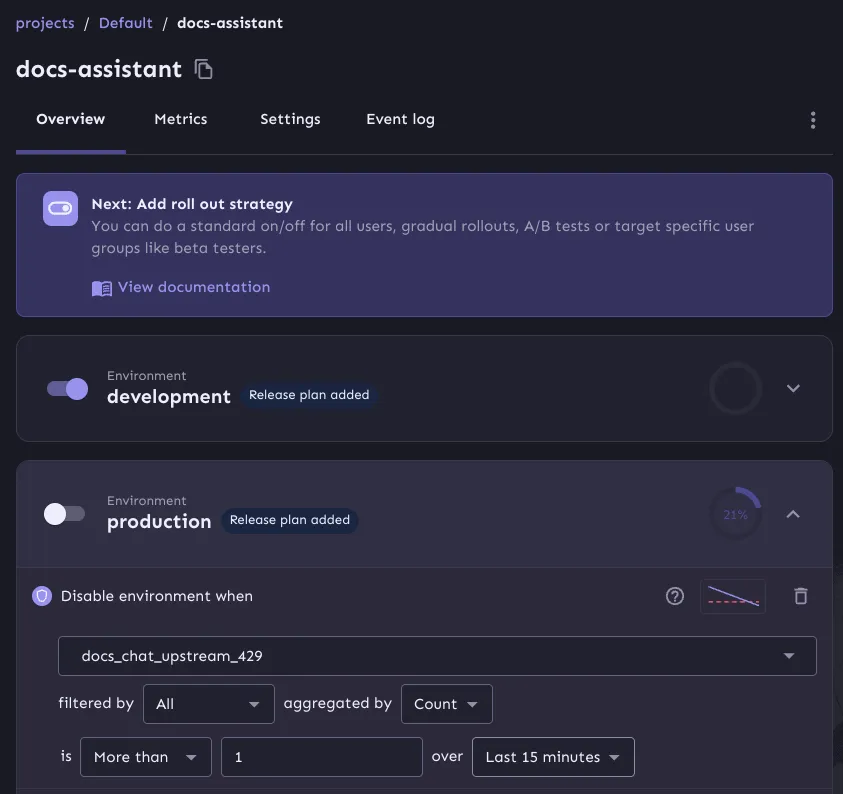
Heads up: the safeguard’s metric dropdown only lists metrics Unleash has already received. Send some real traffic first, or the metric you want won’t be there.
Breaking it on purpose
I needed to trust that the safeguard would kick in and prevent runaway costs or showing errors to readers on my blog. So I broke the chat on purpose, in production, to watch it work and disable the feature automatically. And I used another flag to drive it.
The safeguard watches docs_chat_upstream_429, so I just needed to send a few of those events. I added a docs-assistant-chaos flag that reports a fake 429 with every chat:
metrics.incrementCounter('docs_chat_requests');
if (unleash.isEnabled(CHAOS, { userId })) {
  metrics.incrementCounter('docs_chat_upstream_429');
}
When the chaos flag is off, nothing changes. When it’s on, the chat still answers normally, but every message also reports a 429, which trips the safeguard and disables the docs-assistant flag. So I turned the flag on and sent a new message.
Within a few seconds, the Ask AI button (and backend route) are disabled for all users, and without refreshing the page. The Unleash event log shows the safeguard, not me, as the one who made the change.
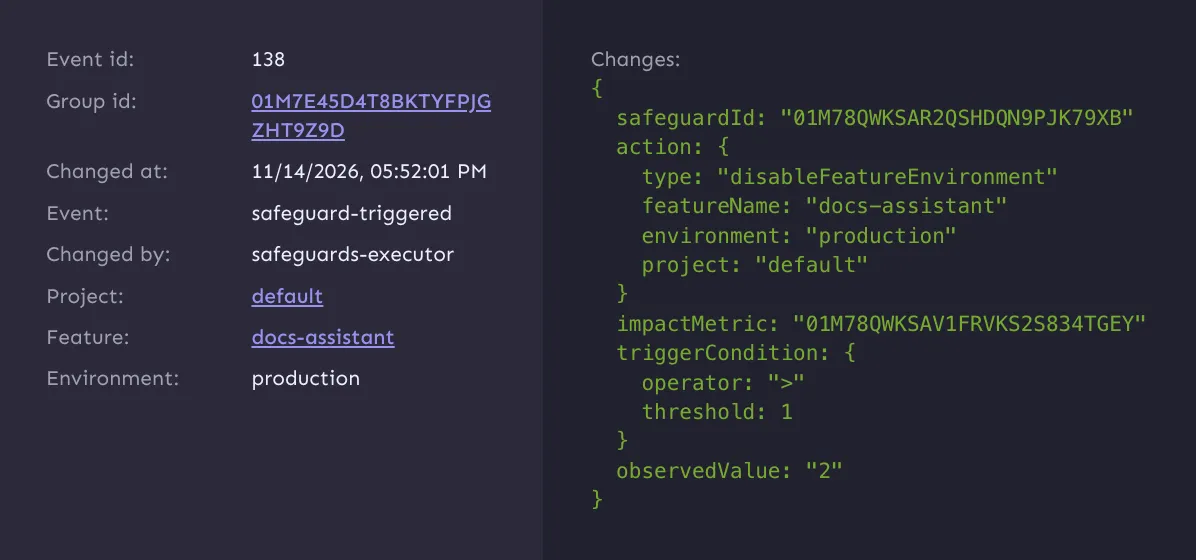
And the best part is, no code change or human intervention was needed. The feature automatically disabled itself as soon as the safeguard threshold was met.
Conclusion
With the first docs assistant at Handsontable, those errors in production were seen by all users, and required manual work and shipping new code to correct it. This time, a hidden limit on the user-facing side would hit a small slice of readers, show up as a spike in a metric, and turn the feature off before most people noticed.
The code side was small: two flag checks, four metrics, and an anonymous user ID. Everything else (who gets the feature, what counts as unhealthy, and what happens then) lives in Unleash, where I can change it without shipping anything. And they have an MCP, so you can manage your flags from your coding agent, without needing the dashboard UI.
What’s Next?
I’ve shipped the assistant to prod, but only for my userID. Next, I’ll use a release template to do a gradual rollout to 10%, then 20, 50, 75 and finally 100 percent of users. After a few weeks, the release flag can be cleaned up, but the killswitch flag will remain.