

Vibe Coding Chrome Extensions With Claude Code
Customize your browsing experience with vibes
Part of the Artificial Intelligence series
Whenever I go to install a browser extension, I always compare the privacy settings with other similar extensions and tend to choose the one that asks for the least permissions. Lots of extensions ask for full read/write page access when it’s not even needed, and other times it’s needed but I don’t want to enable it for a random extension.
This is a perfect use case for vibe coding and Claude Code! I don’t mind granting full page access when I know exactly why each permission was added, and there’s no 3rd party for the extension to phone home to.
Lately I’ve been vibe coding replacements for all the extensions I use regularly.
So far I have built:
⋅ New tab page with Markdown to HTML/Rich Text converter
⋅ LinkedIn text formatter with bold/italic
⋅ Formatter and syntax highlighting for viewing JSON/CSV responses
⋅ Recent/Pinned shortcuts bar
⋅ Color picker to copy HEX values from page element
But more importantly, I have removed 5 extensions and limited what data my browser shares with 3rd parties.
Ready to dive in and build your own extension?
Here’s a quick guide to help you get started!
Planning the extension
First, decide what type of extension you want to build. Pick an existing extension to rebuild, or come up with a new idea, but keep it simple so you can learn the process first.
Then chat with any AI and come up with a plan. I prefer to do the planning with voice mode in ChatGPT, so it’s easier to get a lot of ideas out quickly. Describe the problem, and what you want out of the extension. Is it for one page, the empty new-tab page, or all tabs?
Next, ask the AI to ASK YOU followup questions to expand on the idea. Don’t jump straight to development. Have a conversation, talk about pros and cons of different approaches, and what features you want to include.
At the end of the session, ask the AI to output a plan for building the Chrome extension.
Note: if you decide to use Claude Code for the planning session, be sure to start a new session for the build. The plan will likely mention features or JS libraries you decided against, which could pollute the context of the development session.
Setting Up the Project
Create a new folder for the extension on your local drive and save the plan as PLAN.md.
Tip: On Mac, you can use pbpaste in the terminal to create a new file from the contents of the clipboard.
pbpaste > PLAN.mdOr for Windows:
Get-Clipboard > PLAN.mdThen start up Claude in the same folder. (install Claude Code)
You can run the /init command to prompt Claude to scan the current folder and it will find the PLAN.md. Or just tell Claude you want to build a Chrome extension and start chatting.
Important: Before building, ask Claude if it has any questions about the plan. Just like in the planning session, it helps to have the AI ask you more questions before it generates the output— whether that output is a plan, or actual code.
Building the Extension
Ok, you’ve got a solid plan and Claude understands it.

You can either give into the vibes and blindly ‘Approve All’, or read every edit and try to absorb a few of those vibes into your dome. I don’t read every line of code, but I do pay close attention to what commands Claude runs, and what files are being edited.
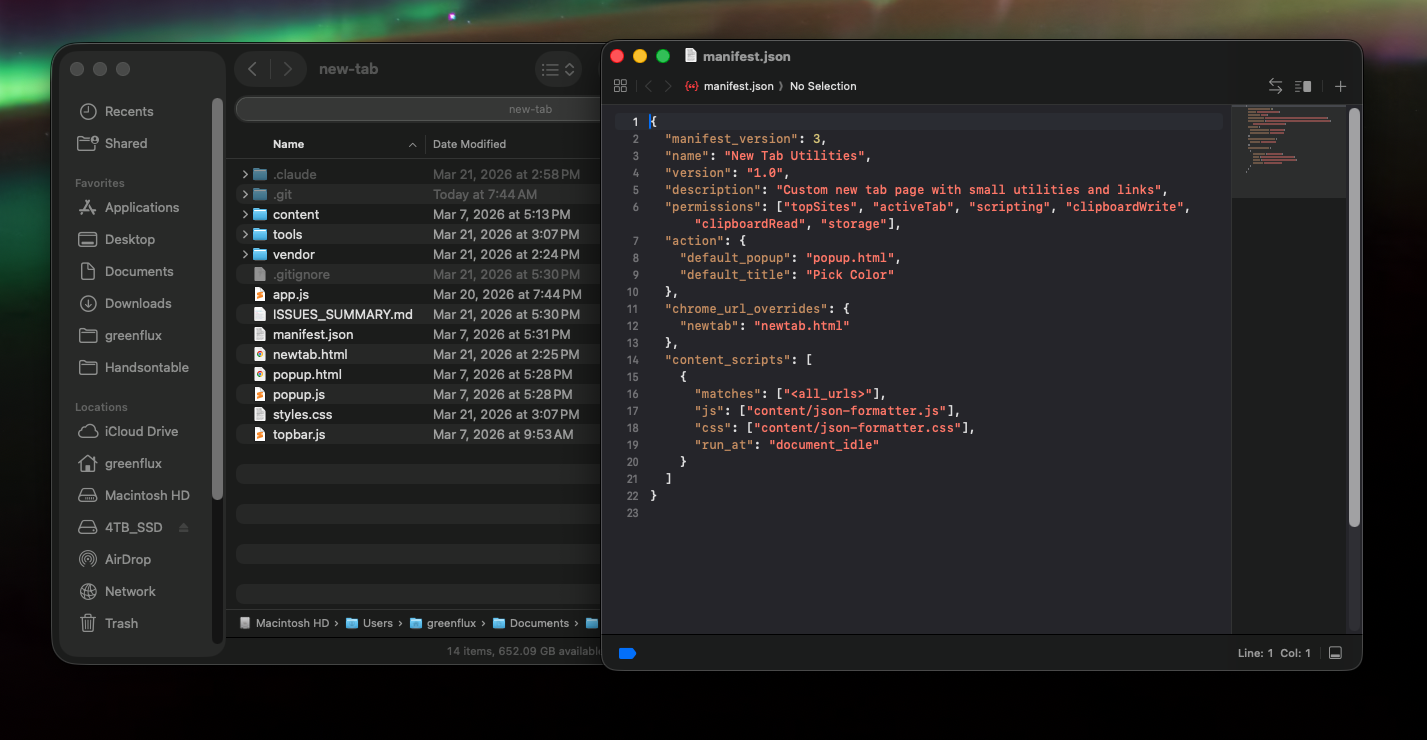
Give it a few minutes (and approve permissions as needed), then you should see several new files including a manifest.json. This file tells Chrome how the extension should behave, what it can access, and when to load it.
Testing and Debugging
Time to test it out! Open Chrome and go to the Settings.
- Extensions > Manage Extensions
- Enable Developer mode (top right toggle)
- Click Load unpacked
- Select the folder for your extension
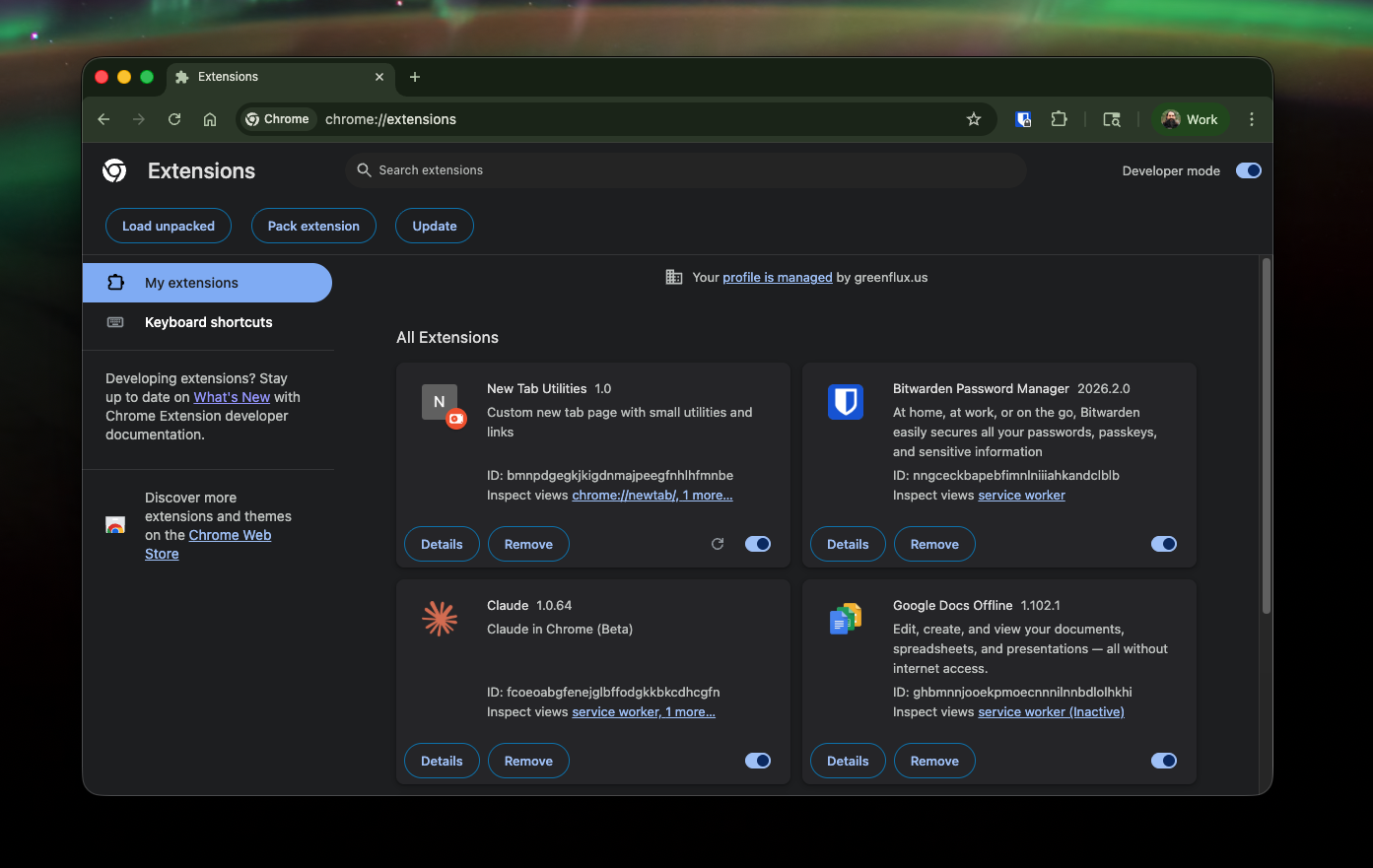 That’s it! Your extension should be ready to use now. You may have to refresh or open a new tab for it to take effect.
Making edits
You may notice that certain edits from Claude are immediately reflected in your extension, and other times you have to reimport it using Load unpacked again. If the edit is part of the UI and no new files are created (only edited), those tend to show up without reimporting. But don’t expect all changes to work this way.
It’s best to just reimport the extension every time you make edits, so you’re not debugging something that actually works if you just reimport it!
Conclusion
Chrome extensions can be useful but they also pose a security and privacy risk. Instead of granting permissions to random 3rd party extension developers, you can build your own extensions with Claude Code and bypass the Chrome web store.
Building your own extension means there’s no 3rd party for the extension to phone home to, and you can safely enable the required permissions. This also gives you more control to customize the extension and build something unique that’s perfectly suited for your needs, instead of being limited to official extensions.